Logging into Live Platform portal with Microsoft Azure MFA
Logging into the Live Platform Operation Center portal interface is secured using Azure Authentication with Multi-Factor Authentication (MFA). Accessing the Operation Center portal using your Azure tenant credentials initially requires you to login with the Global admin credentials of your Microsoft Entra ID tenant. This action establishes a connection with Microsoft Entra ID and creates an Enterprise application. During this process, the Global admin must authorize access for Live Platform to your tenant resources in Microsoft Entra ID. Once the Enterprise application is created, you can assign Live Platform Security roles to to Live Platform Operation Center portal users.
| ● | Perform this procedure with "Global Admin" permissions for the consenting tenant. |
| ● | The Live Platform user does not require the assignment of any Microsoft Entra ID roles. |
| ● | Access to the Operation Center portal supports Multi-Factor Authentication if your M365 tenant is configured for MFA. |
| ● | Ensure that your provider or reseller has added a customer entity for the tenant whose operators you wish to provide access to the Live Platform portal (see Add Customers). |
| ➢ | Do the following: |
| 1. | Verify with your Service provider or Channel that a Customer entity has been added on Live Platform for your enterprise. |
| 2. | In your Web browser, enter the Live Platform Operation Center portal URL (obtain the URL from your Service Provider or Channel Reseller). |
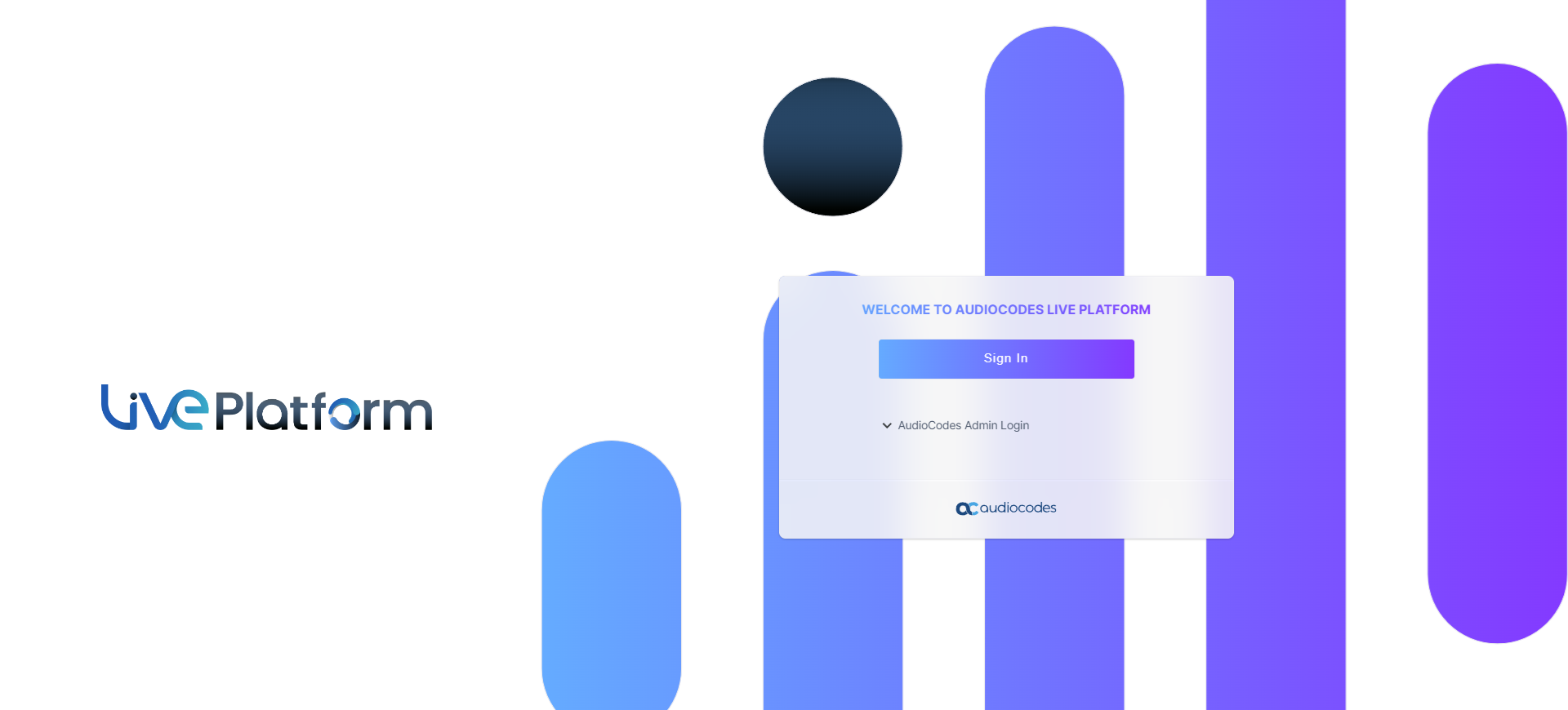
| 3. | Click Sign In. |
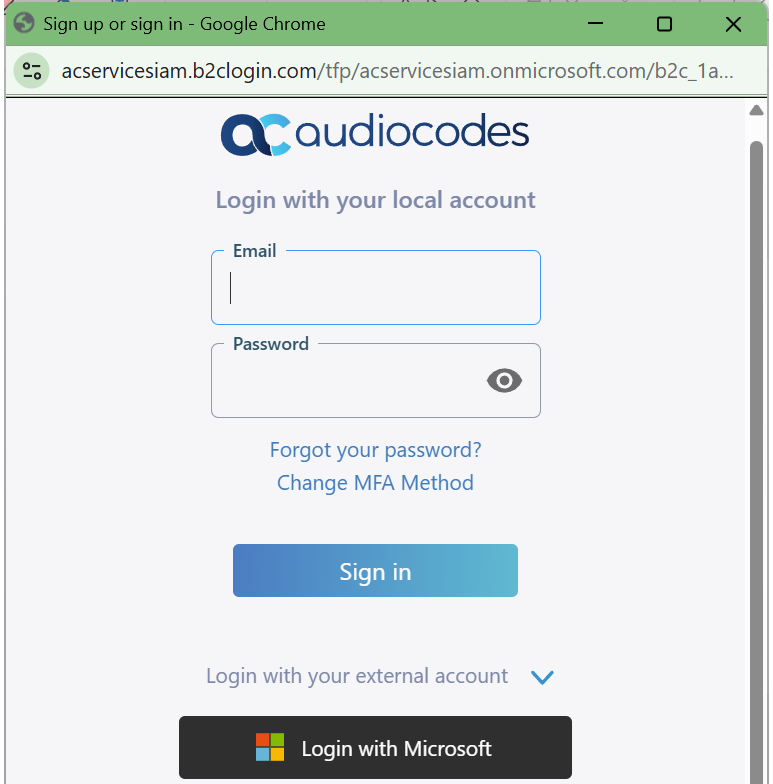
| 4. | Click Login with Microsoft. |
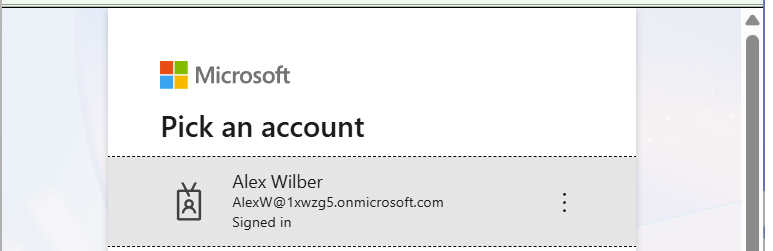
| 5. | Select the Global Admin user account of your M365 tenant. |
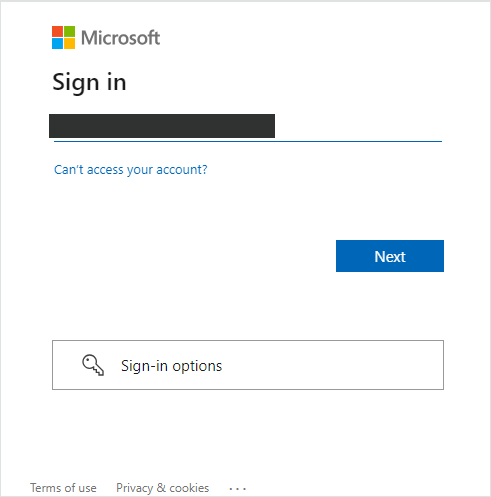
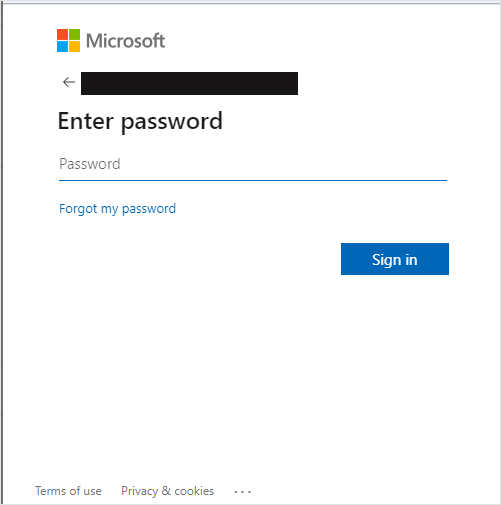
| 6. | Enter Username and password and then click Sign in. |
| 7. | You are prompted to authenticate your account using Microsoft Authenticator. Follow instructions to add the Global Admin user to the Microsoft Authenticator. |
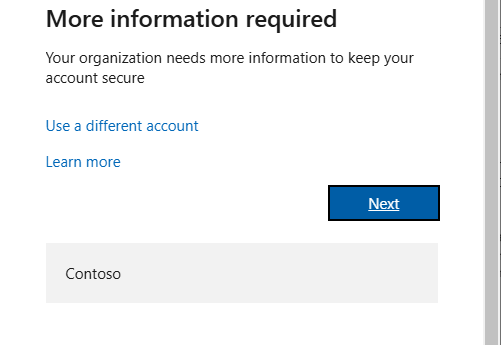
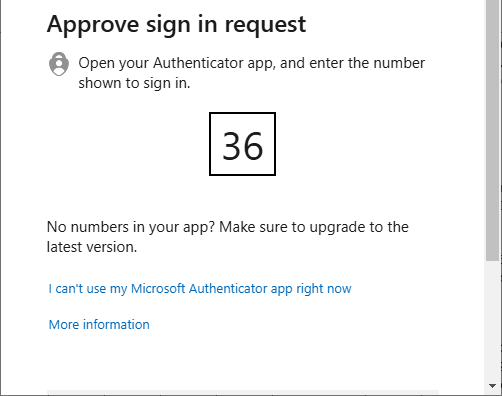
| 8. | Once setup, you are prompted to enter code on the Authenticator app on your mobile device, a screen similar to the following is displayed; complete the authentication process. |
| 9. | Enter the credentials of the Global Admin user. The Azure authentication and Permissions request dialog is displayed: |
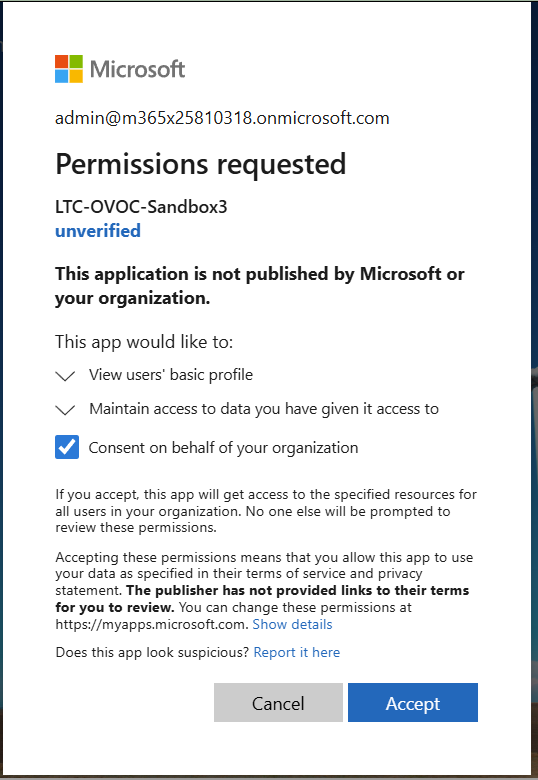
| 10. | Select the Consent on Behalf of your organization check box and then click Accept. |
The login screen is displayed with "Login Failed" message.
| 11. | Login to Microsoft Entra ID with your Global Admin user and navigate to the newly created Enterprise application. |
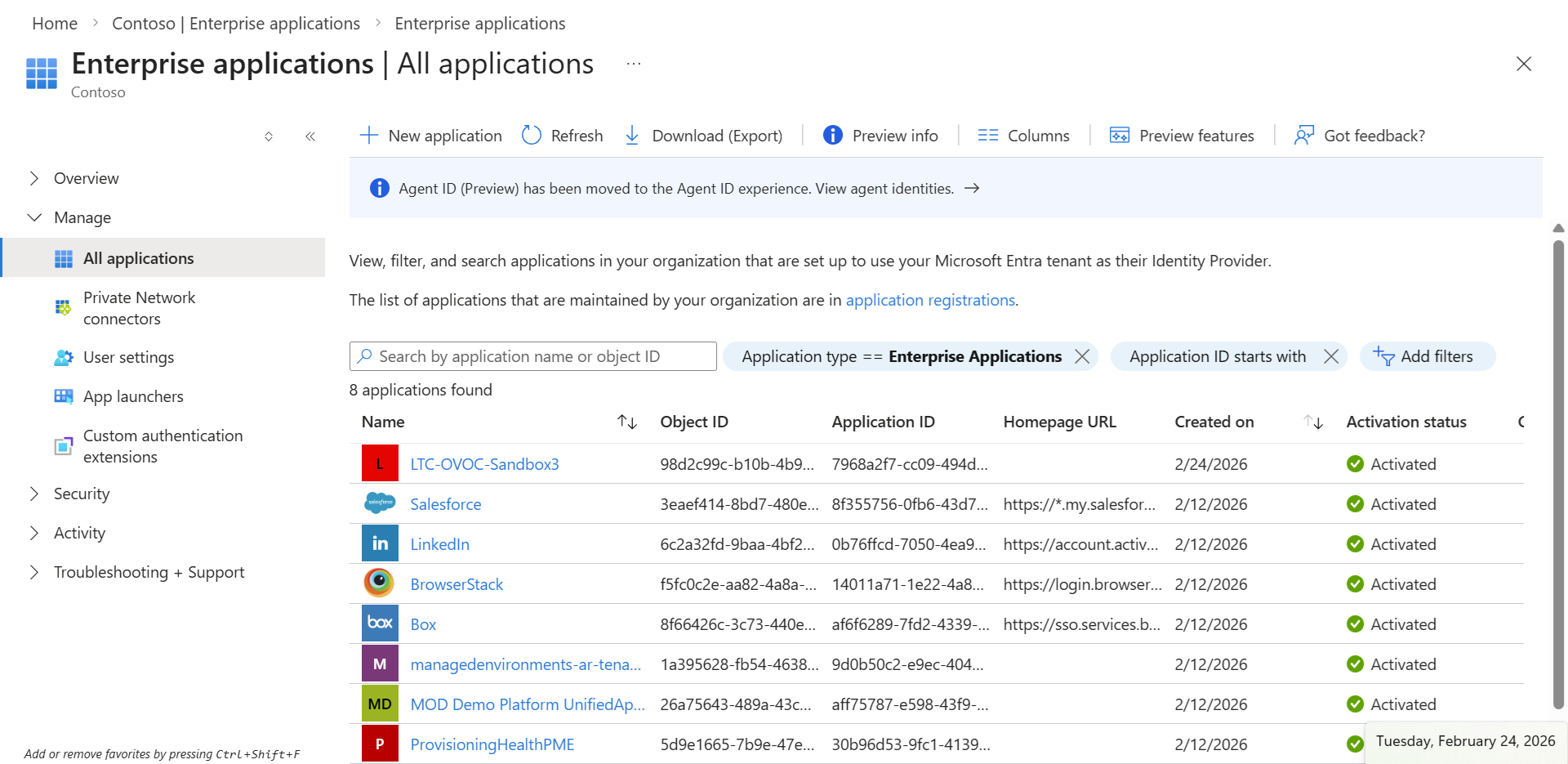
| 12. | Click to open the new Enterprise application and then in the Navigation pane, select Manage > Users and groups. |
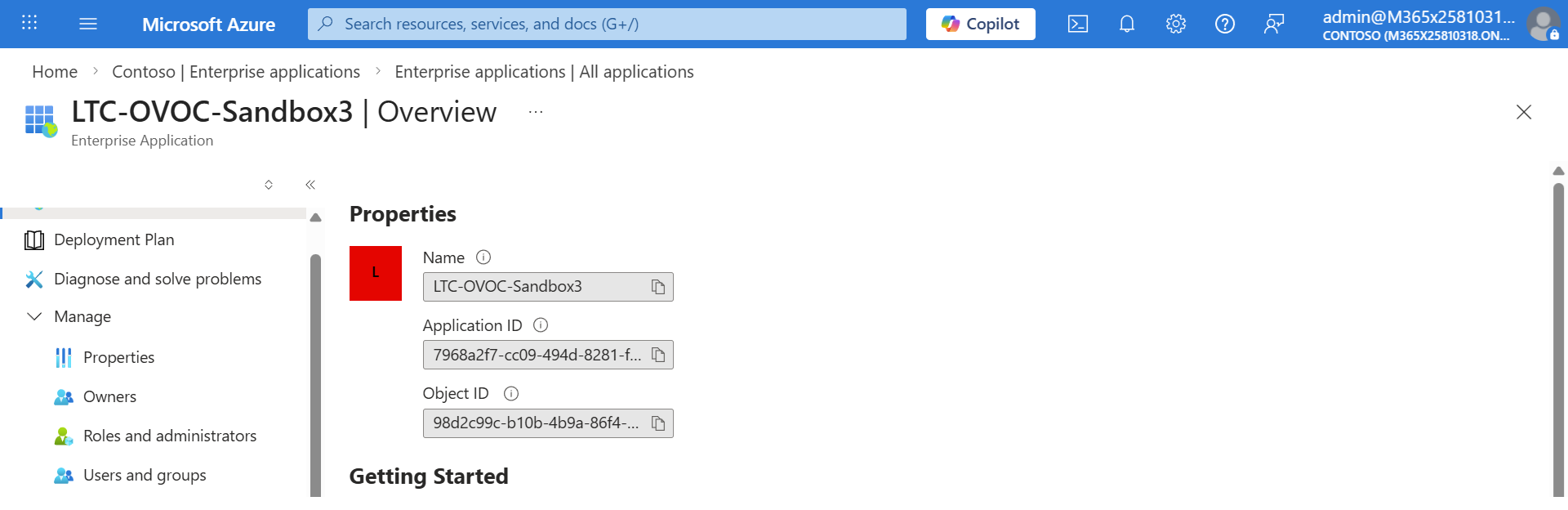
| 13. | Click Add user/group. |
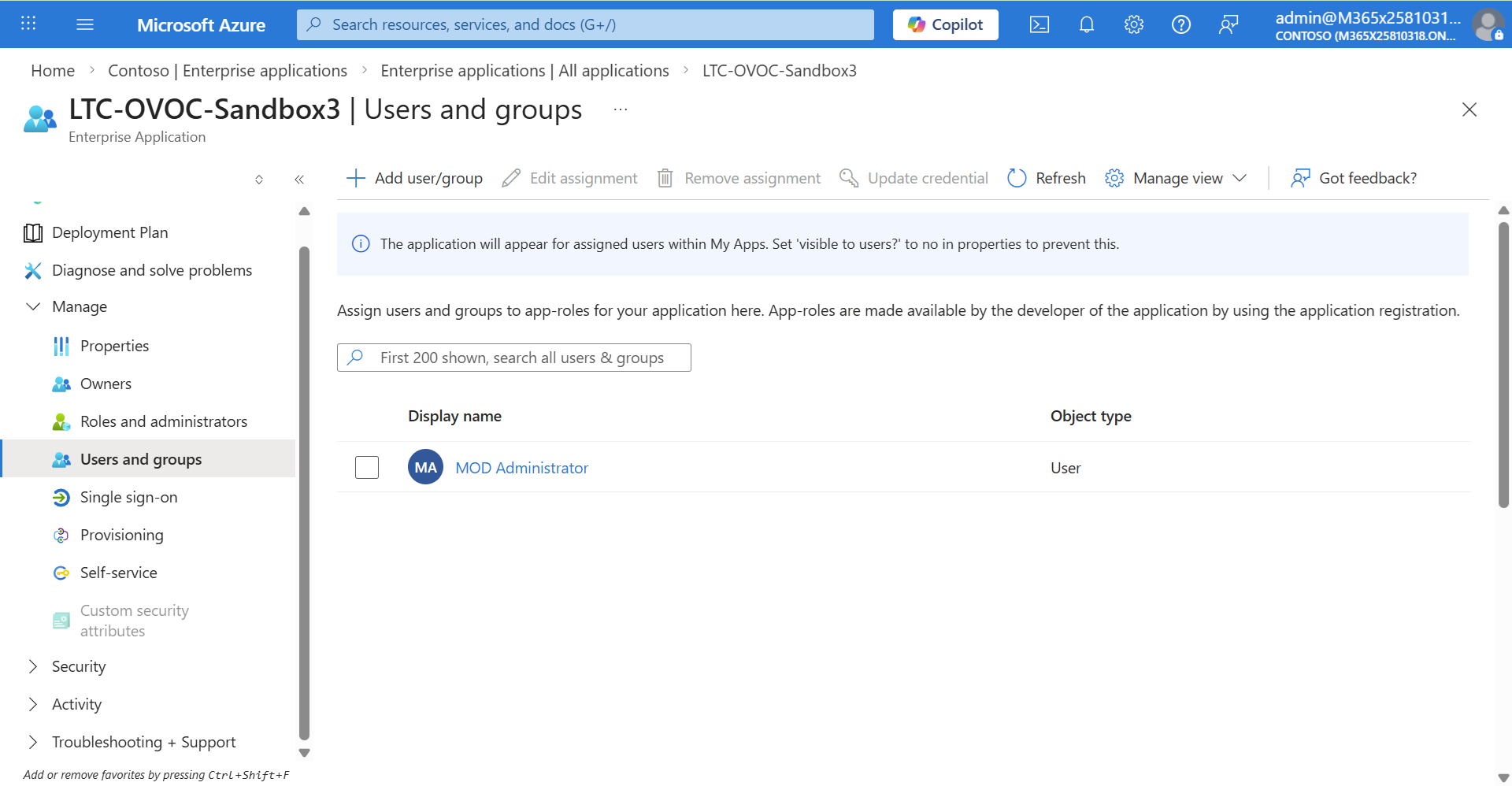
| 14. | In the left pane, select the None Selected link under Users and groups, in the Users and groups dialog, select the user for which you wish to add an assignment, and then click Select. |
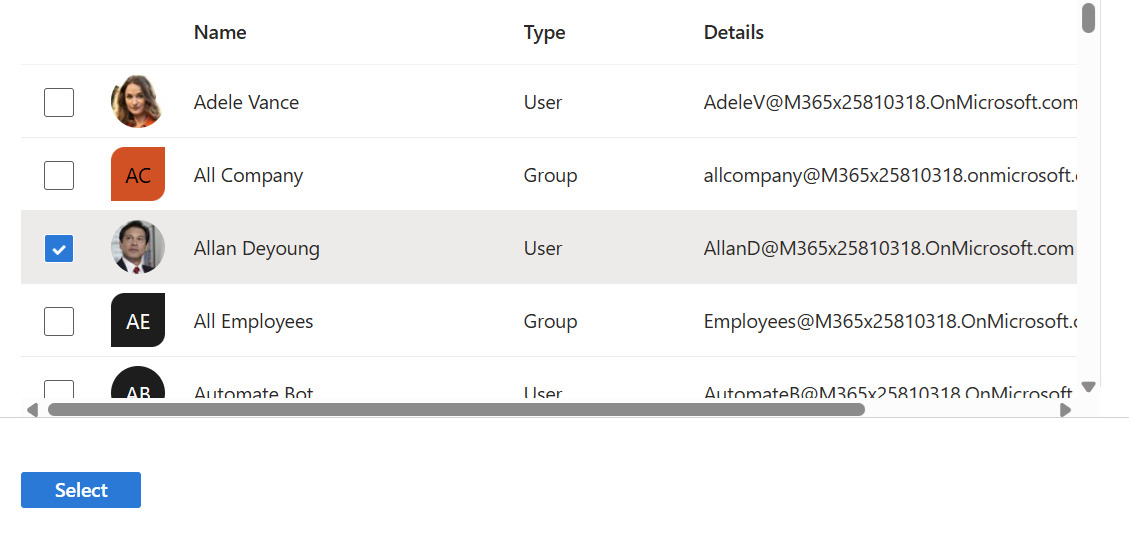
The user is selected, see "1 user selected" below.

| 15. | Under the Select a role link, click the None Selected link. |

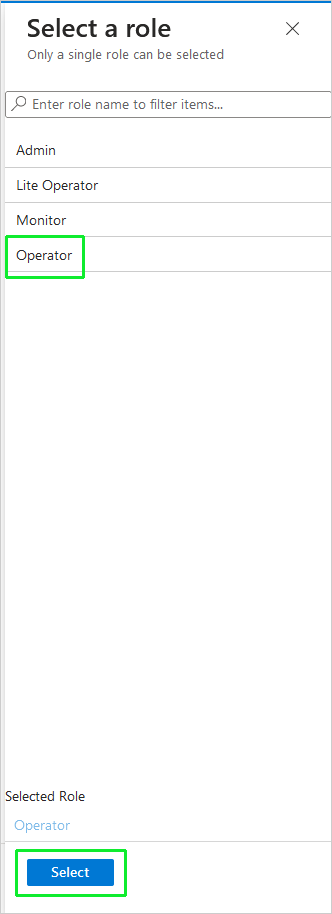
| 16. | In the right pane, select the relevant role for the user and then click Select: |
| ● | Lite Operator |
Lite Operator is applicable only if you are managing Direct Routing services.
| ● | Monitor |
| ● | Operator |
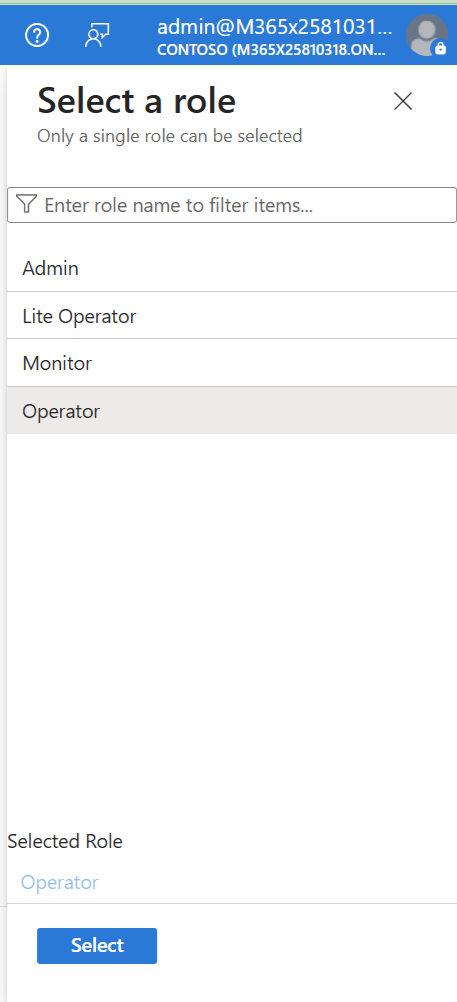
| 17. | Click Select to confirm selection. |
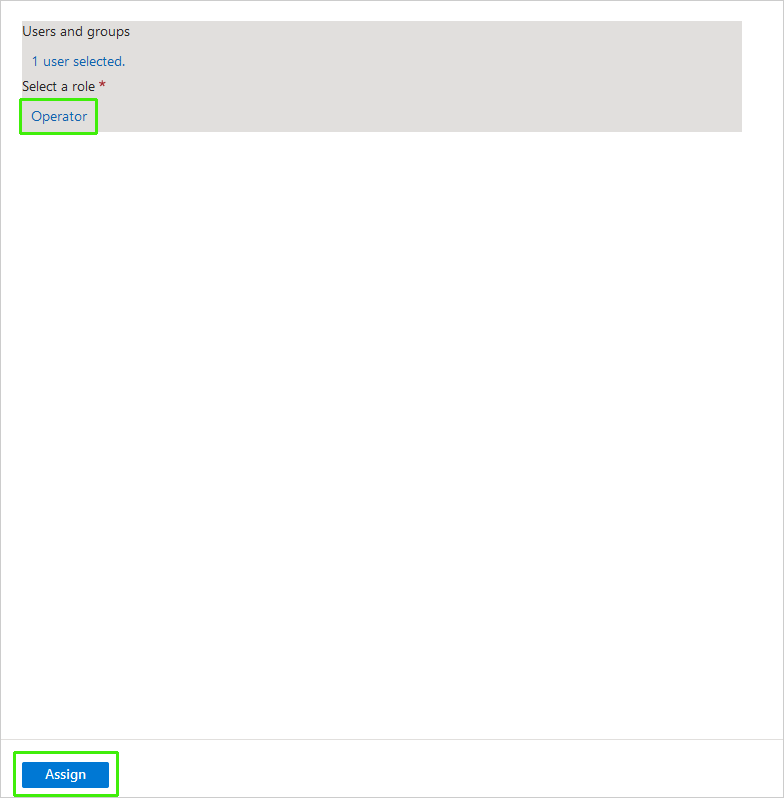
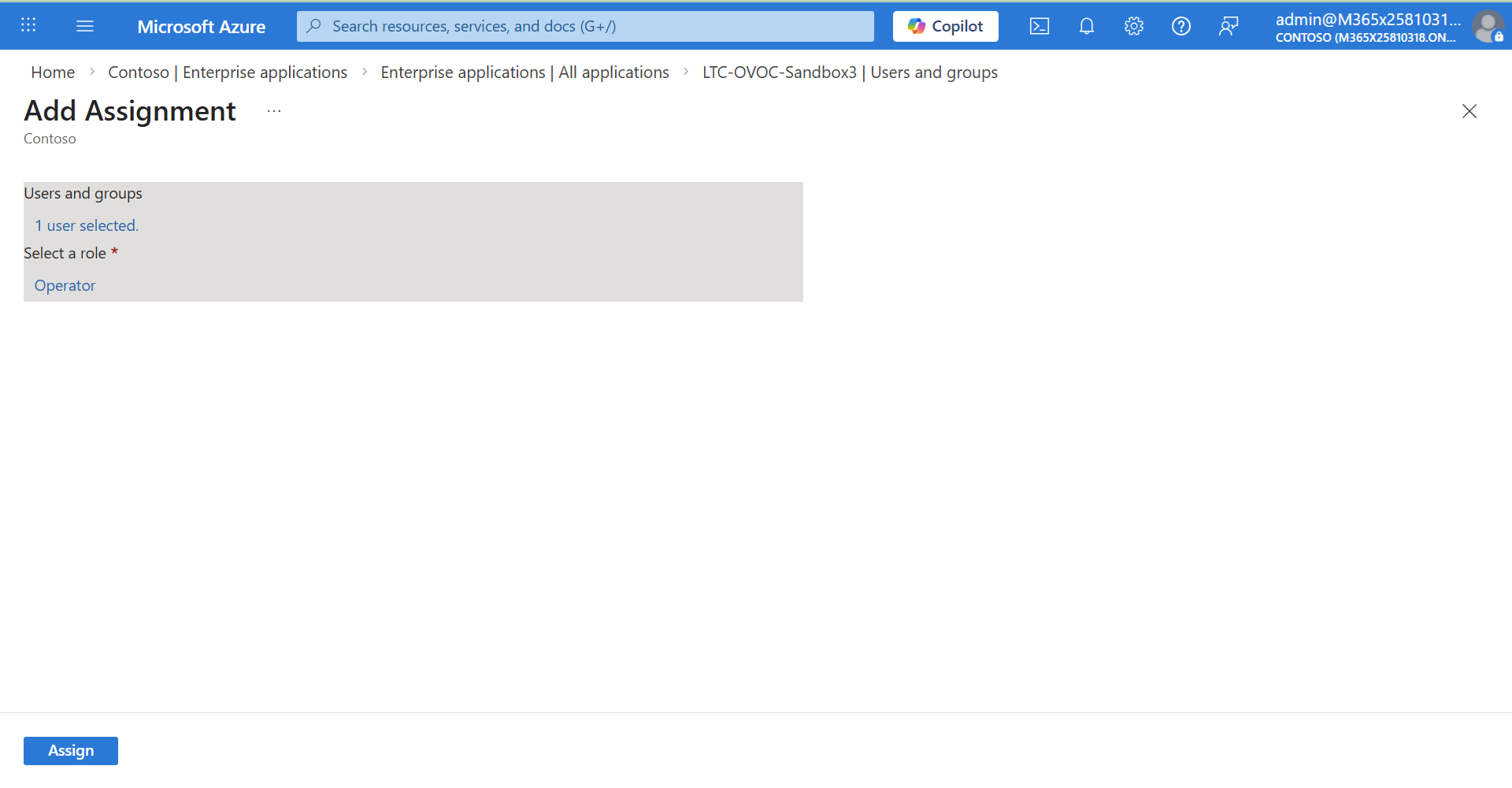
| 18. | Click Assign. The assigned user is displayed in the screen below. |
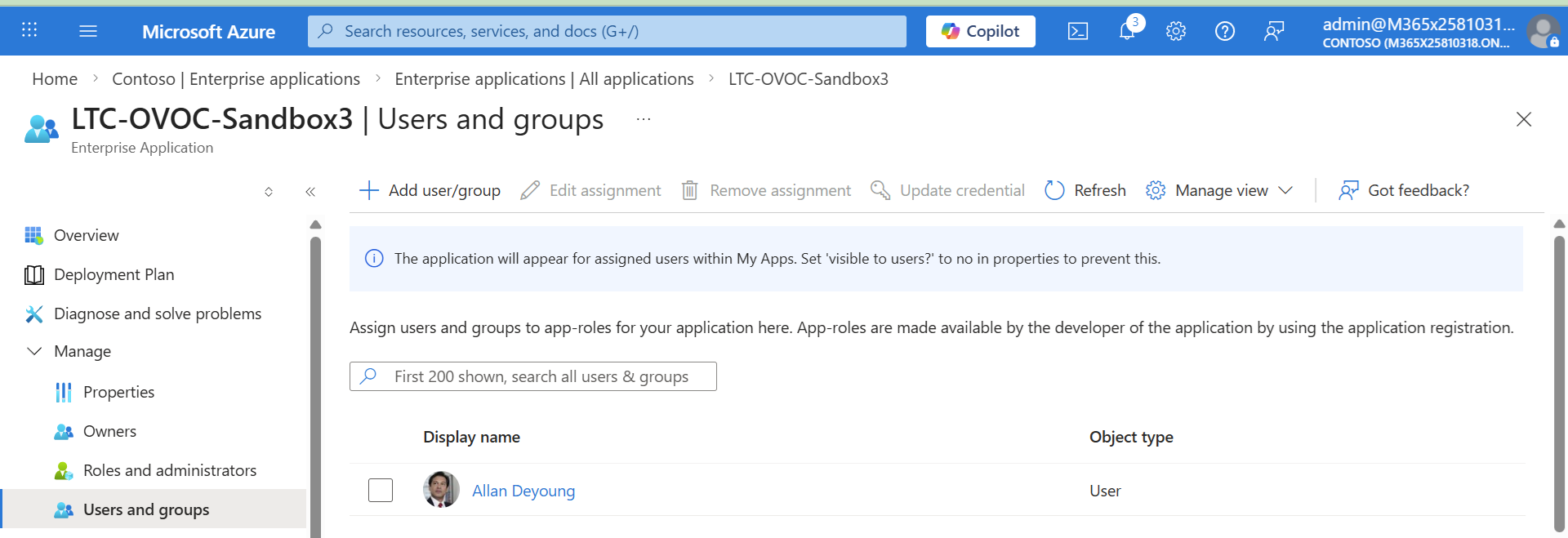
| 19. | Access the Live Platform Operation Center portal URL. |
| 20. | Click Sign In. |
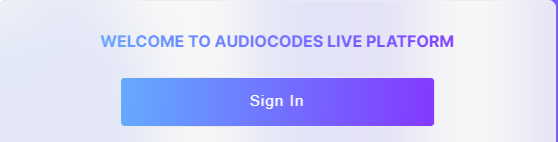
| 21. | Click Login with Microsoft. |
| 22. | Enter the credentials of the user that you added to the Enterprise application and then click Sign in. |
| 23. | You are prompted to authenticate your account using Microsoft Authenticator. A screen similar to the following is displayed. Follow the steps to configure the user account in the Microsoft Authenticator. |
Once successfully logged in, the Customer dashboard is displayed.
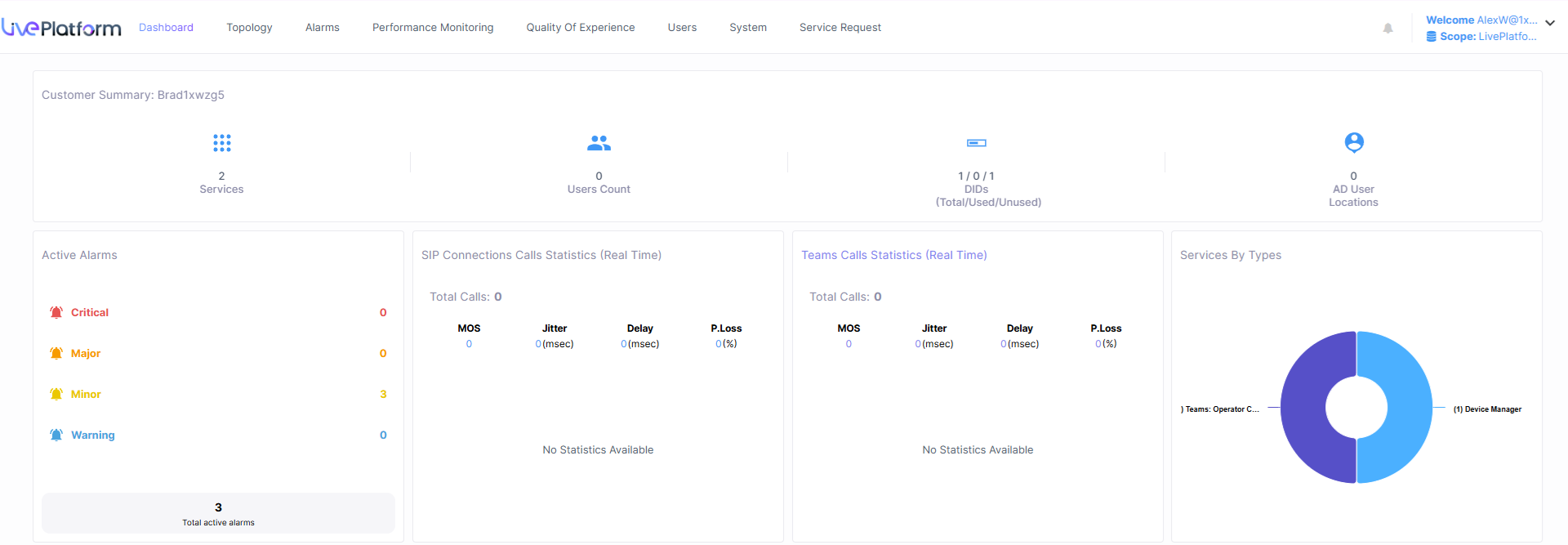
| 24. | In the top right-hand corner of the screen, click on the credentials of the logged in user to open the drop-down. Notice that you are now logged in with the role that you assigned to the user above. |
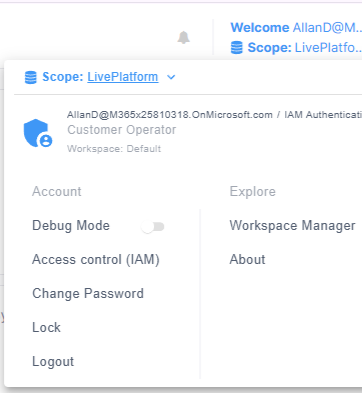
The table below describes the actions that can be performed with these roles for each different service.
Services
|
Service |
Reference |
|---|---|
|
Direct Routing |
|
|
Live CX |
|
|
Live UC |
|
|
Zoom Peering |
|
|
Device Manager |
|
|
Interaction Insights |